- Text Messaging with the Messages App
- Video Chatting and More with FaceTime
- Group Video Meetings with Zoom
This chapter is from the book
This chapter is from the book
This chapter is from the book
Group Video Meetings with Zoom
During the coronavirus shutdown, many people kept in touch with co-workers, family members, book clubs, and school classes with Zoom, a popular service for group video meetings. Zoom meetings can be joined from any device with an Internet connection and a web browser; iPads have proven particularly popular with users for their Zoom meetings.
The Zoom app is free from the App Store.
JOIN A MEETING FROM A LINK
If someone is hosting a Zoom meeting, they’ll send you an invitation to join that meeting. You can join the meeting by clicking the link in the invitation or by entering meeting information into the Zoom app (discussed next).
 Tap the Zoom icon to launch the Zoom app.

 In the email message, tap the link to the meeting. Upon entering the passcode from the email, the host will now admit you to the meeting.
)
JOIN A MEETING FROM WITHIN THE ZOOM APP
Sometimes a Zoom invitation includes a meeting ID and password rather than a link to the meeting. You can manually enter these into the Zoom app to join a meeting.
Tap the Zoom icon to launch the Zoom app.

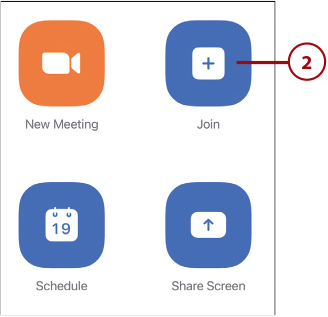
From within the Zoom app, tap Join.
 Enter the meeting ID into the Meeting ID field.
 Tap Join.
)
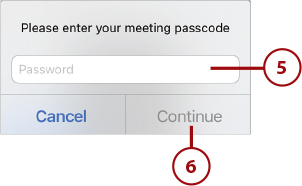
 When prompted, enter the password.
 Tap Continue. The host will admit you to the meeting.
PARTICIPATE IN A ZOOM MEETING
It’s easy to participate in a Zoom meeting. You’ll see the other participants on screen, and they’ll see you, assuming video is turned on. All you have to do is talk.
By default, Zoom displays in Active Speaker view. The current speaker occupies most of the screen, and you appear in a smaller window. You do not see the other participants unless they’re speaking.
Tap the screen and then tap Switch to Gallery View to switch to Gallery View.
)
In Gallery View, you see thumbnails for every participant, arranged in a grid pattern. The current speaker’s thumbnail appears with a green border.
Tap the screen and then tap Mute to mute your sound. Tap Unmute (the same icon) to unmute your sound.
Tap the screen and then tap Stop Video to turn off your camera. Tap Start Video (same icon) to turn your camera back on.
Tap Participants to see a list of participants in this meeting.
 Tap Switch to Active Speaker to switch back to Active Speaker view.
)
 To privately text chat with one or more participants, tap More (…) and then tap Chat. This displays a Chat pane.
)
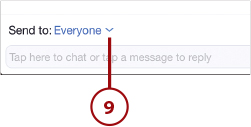
 Pull down the Send To list and choose who you want to chat with. Select Everyone to send the message to all participants.
 Type your message in the message box and then tap Send.
)
 To change the background that appears behind you, tap More (…) and then tap Virtual Background.
)
 Tap the desired background. You see how you look against that background. Or…
 Tap + to select one of your own photos as a background.
 Tap None to not use a background.
 Tap the X to return to the meeting.
)
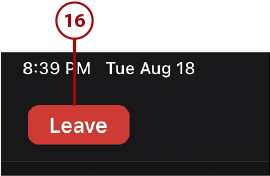
 When the meeting is over, or when you need to leave, tap Leave.
 When prompted, tap Leave Meeting.
)
START A NEW ZOOM MEETING
With a Zoom account, it’s easy to start your own meetings. You can start a new meeting at any time or schedule a meeting in advance (discussed next).
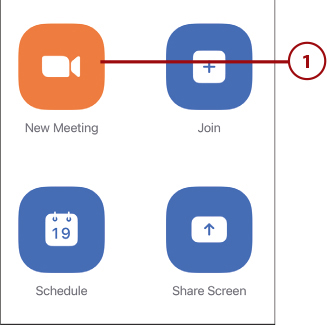
From within the Zoom app, tap New Meeting to immediately start a meeting.
In the Start a Meeting panel, make sure your video is turned on and then tap Start a Meeting.
)
The meeting is now live. Tap Participants to invite others to the meeting.
Tap Invite.
)
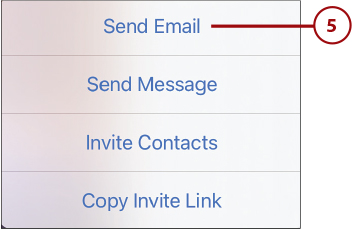
Tap Send Email to email invitations. Alternatively, you can invite others via text message (Send Message), send invitations direct to people on your contact list (Invite Contacts), or copy the invitation link so you can paste it into your own email or message (Copy Invite Link).
Enter one or more email addresses into the To field.
Tap in the message field and enter your own message, if you like, in addition to the automatically generated link, meeting ID, and passcode.
Tap Send.
)
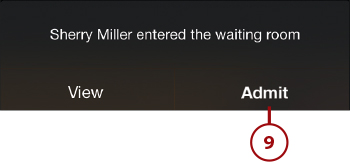
When a participant responds, you see a notice that they’ve entered the “waiting room.” Tap Admit to let them into the meeting.
Conduct the meeting as usual. Tap the screen and then tap End to end the meeting.
)
When prompted, tap End Meeting for All. (If you’re just leaving the meeting and others are continuing, tap Leave Meeting instead.)
)
SCHEDULE A MEETING IN ADVANCE
In most instances, you’ll want to schedule meetings in advance, to give participants a chance to prepare.
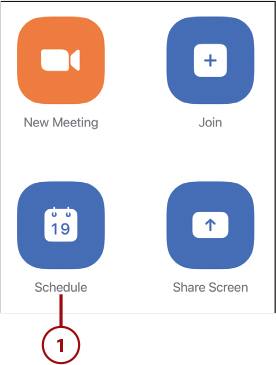
From within the Zoom app, tap Schedule.
In the Schedule Meeting panel, tap within the top field and give the meeting a name.
Tap Starts and enter a start time and date.
Tap Duration and enter how long the meeting will be.
Tap Save.
)
When the New Event panel appears, tap Add.
)
From the main screen, tap Meetings in the left sidebar.
This displays all scheduled meetings. Tap the meeting you just added.
)
Tap Add Invitees.
Tap Send Email. (Or, to send an invitation via text message, tap Send Message.)
)
Enter one or more email addresses into the To field.
Tap in the message field and enter your own message, if you like, in addition to the automatically generated link, meeting ID, and passcode.
Tap Send.
)
When it’s time for the meeting to start, tap Meetings in the Zoom sidebar, then tap Start for your meeting.
)
